
DeckCraft or PowerPoint: start with the job you need to do
Choose a presentation tool by testing the work it must support. A familiar ribbon, an attractive screenshot, or a long feature list does not tell you whether your team can edit, review, and deliver a particular deck successfully. The useful question is which workflow you can rely on with your actual files and collaborators.
DeckCraft is worth evaluating when you want an open-source presentation editor and are willing to test an application that remains in active early development. PowerPoint deserves particular attention when your organization already works in Microsoft 365, when simultaneous editing matters, or when a recipient requires a PowerPoint-based handoff. Those are starting hypotheses, not a verdict for every project.
For a brief feature overview, use the comparison page. This longer guide explains how to make the decision with evidence. You can return to the DeckCraft homepage to try the browser editor or use the download guide to evaluate a desktop build.
Separate the upstream application from the particular version you are trying. The hosted browser build on this site is labeled v0.7.0 as of this guide's update. Newer upstream releases may have different behavior. The project also maintains a known-gaps document; review it alongside your own tests rather than assuming that a documented feature guarantees complete compatibility.
Compare cost and access without oversimplifying “free”
DeckCraft's public project provides open-source code and downloadable releases. If access to source code matters to your organization, identify what you need it for: inspection, customization, reproducible builds, or a specific deployment arrangement. Open-source availability answers a different question from whether a particular document can be shared with colleagues conveniently.
PowerPoint is not exclusively a paid desktop product. Microsoft offers PowerPoint for the web through a free Microsoft account, while desktop applications and additional capabilities are available through other plans. Check the current plan for your region and account type before making a cost comparison. Microsoft's free web applications, PowerPoint plans and product information.
Include the cost of changing a workflow. If a different editor saves on licensing but requires hours of manual correction for every handoff, that correction time belongs in the evaluation. Conversely, if your presentations are simple, created by one person, and delivered as a static artifact, a more elaborate subscription workflow may not be necessary for that specific job.
Write down who creates files, who reviews them, and who presents them. An author who can install a desktop application has different requirements from a guest reviewer who can only open a browser. A team already licensed for Microsoft 365 has a different starting point from an independent user choosing their first tool. Avoid applying someone else's cost calculation to your own situation without checking those assumptions.
Compare the editing tasks you repeat most often
Use a short list of actual authoring tasks rather than comparing every button. For example: create a title slide, build a two-column content slide, add a picture, draw a process, revise a chart label, and reorder the story. Time the work if efficiency matters, but also note mistakes and corrections. A fast first attempt that produces a fragile document may not save time overall.
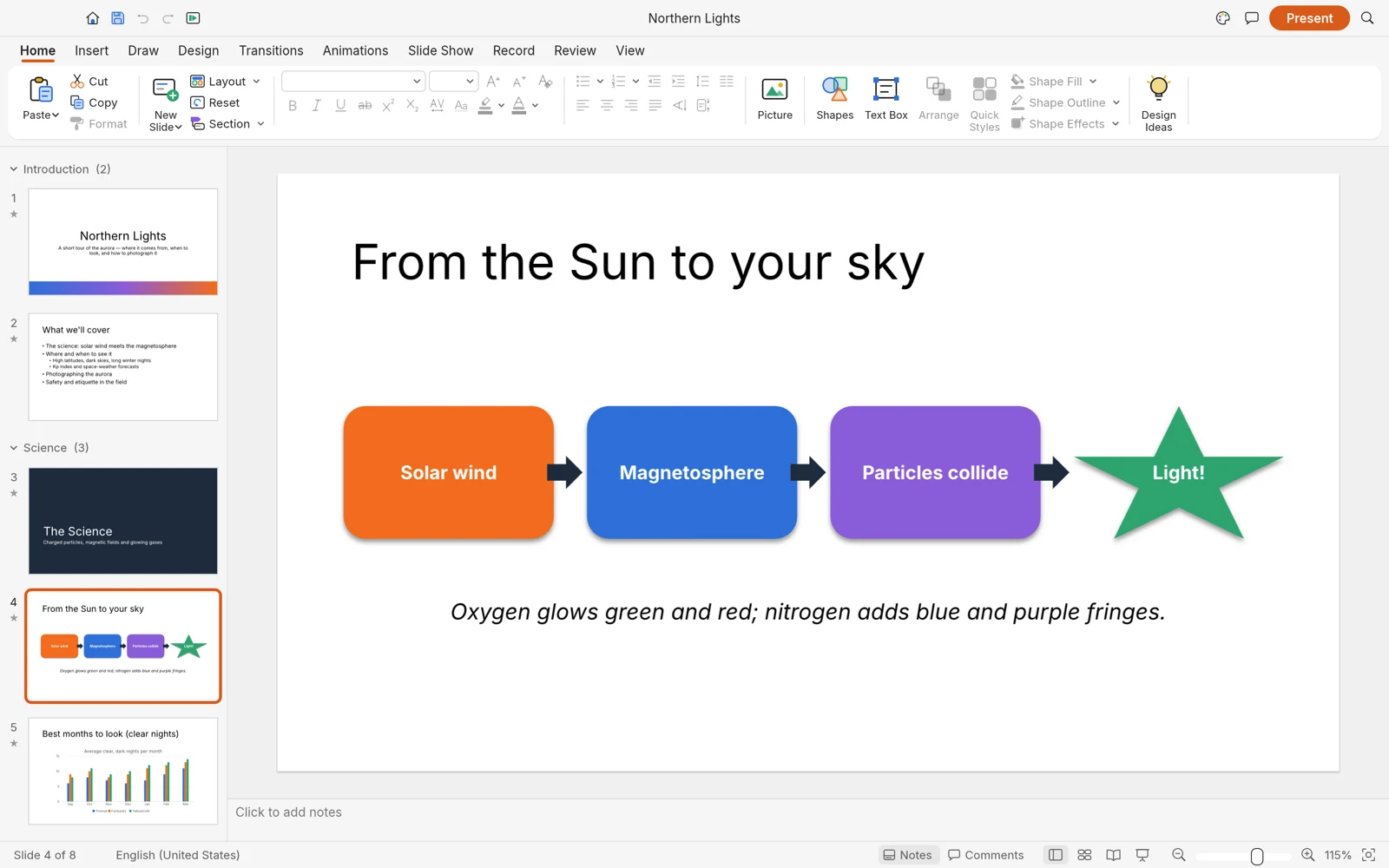
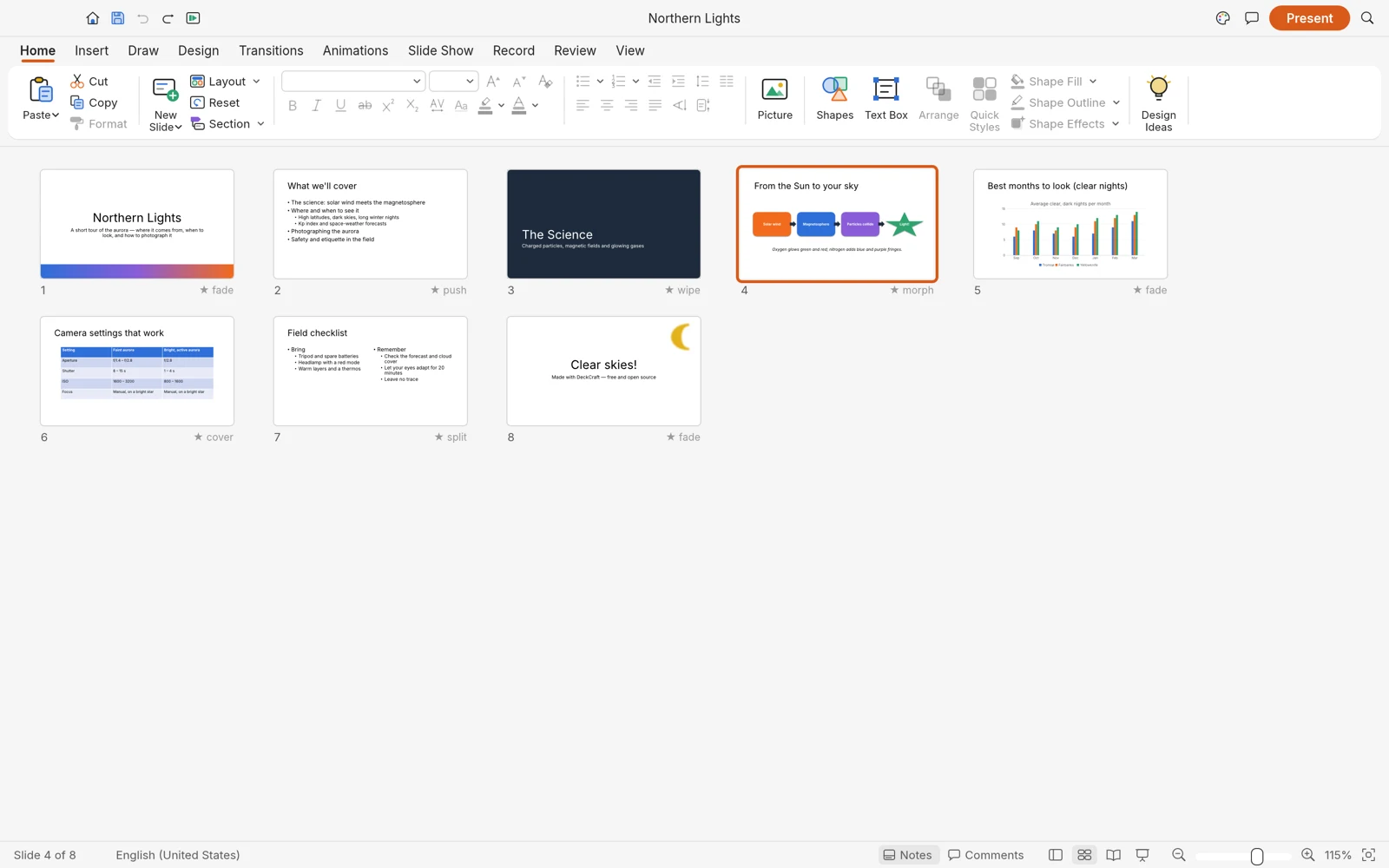
The DeckCraft screenshots show a ribbon, slide thumbnails, a central canvas, and contextual formatting areas. That arrangement can be approachable to someone accustomed to presentation software. However, familiar labels do not prove identical behavior, shortcut support, or output fidelity. Use the visible controls in your specific build and verify the result.
For PowerPoint, Microsoft's basic presentation workflow documents creating slides, adding content, saving, and presenting. Use that as the reference when you are learning PowerPoint rather than assuming the desktop and web interfaces always match.
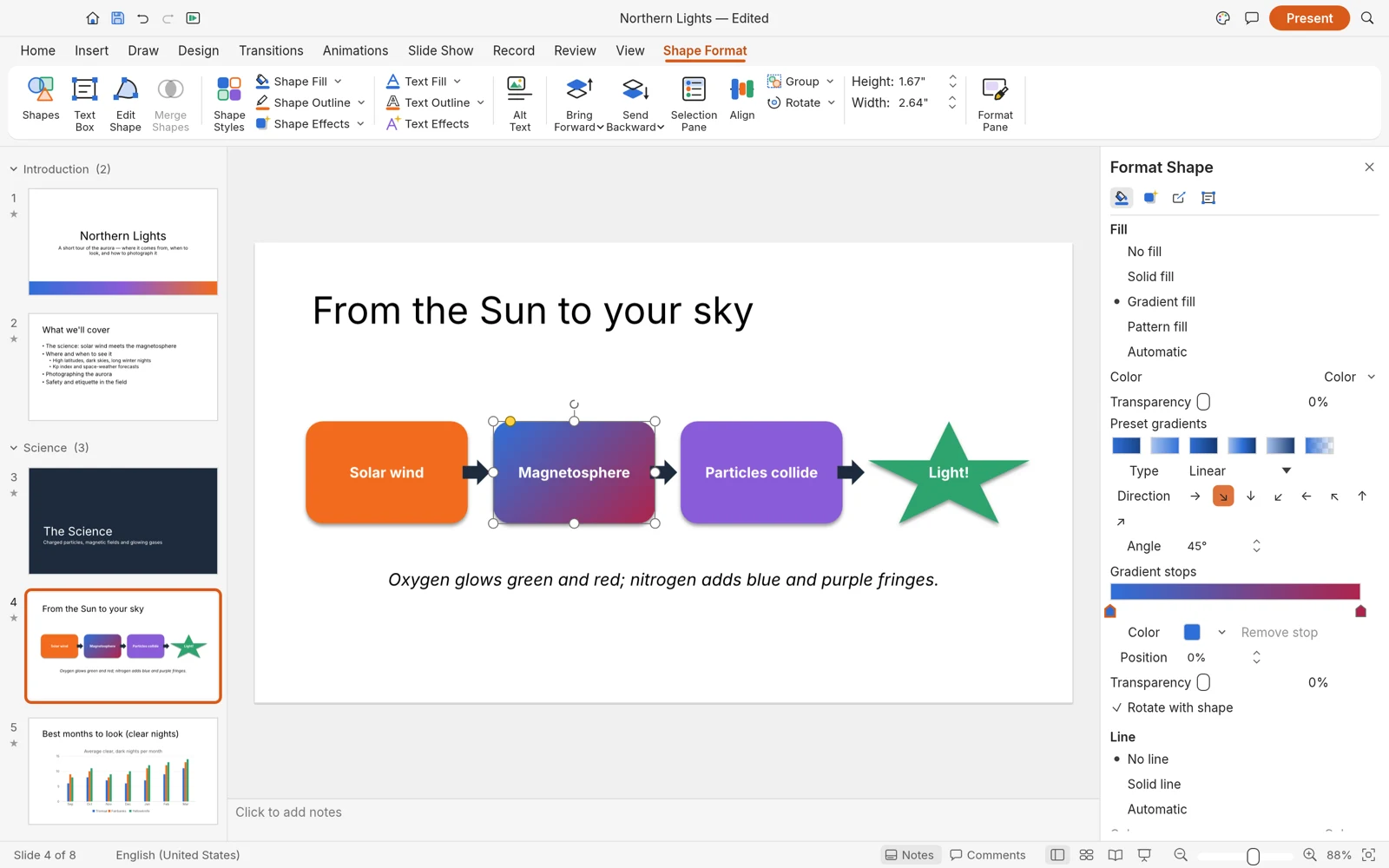
Build the same small slide in each candidate environment. Use the same source image, the same wording, and the same target layout. Record where selection is confusing, where formatting is difficult to repeat, and whether text remains readable after you reopen the file. Keep your observations specific enough that another person could repeat the test.
Also test the design work your project depends on. A classroom explanation may need only text and images. A quarterly report may depend on charts, notes, and an established template. A recorded training presentation may depend on media and timing. Weight the tasks by importance instead of counting all features equally.
Run a PPTX round-trip test before switching
PPTX is a file format, not a guarantee that every application interprets every element identically. A file opening without an error is the beginning of the compatibility check. Your goal is to confirm that the visual appearance, editable objects, and presentation behavior needed by the recipient remain usable.
Choose a copy of a representative PowerPoint document. Include ordinary content and the elements most likely to matter in your work: long titles, custom fonts, cropped images, tables, charts, notes, and motion where relevant. Remove private data before using the file in an evaluation that others may inspect.
Follow this sequence:
- Establish a reference. Open the original in PowerPoint and record how the important slides look and behave.
- Import a copy. Open it in the DeckCraft build you are considering and inspect the same slides.
- Make a small edit. Change one title and move one ordinary object so the result is easy to identify.
- Save a new file. Use a different name and preserve the original.
- Return to PowerPoint. Reopen the output and compare both the changed and unchanged slides.
- Repeat the delivery conditions. Present on the intended computer or screen-sharing setup if that is how the deck will be used.
Keep a simple issue log. For each difference, record the slide number, the affected object, its importance, and the time needed to correct it. A minor font substitution on an internal draft is different from a chart label that changes the interpretation of a result. Decide which differences are acceptable before you become invested in the migration.
When a complex element does not survive, consider whether a simpler representation would meet the audience's needs. A diagram can sometimes be rebuilt from ordinary shapes. A static image may preserve appearance but sacrifices editability and accessibility, so use that tradeoff deliberately. If the recipient needs to edit the object, completing that part in PowerPoint may be the better choice.
Do not overwrite the only original while experimenting. Keep a known-good source and a separate output for each test. If a particular release improves compatibility, repeat the same test document so your conclusion comes from an observable change rather than a general impression.
Distinguish exchanging files from editing together
Emailing a PPTX to a colleague, sharing a cloud document link, and editing simultaneously are three different workflows. A tool can support one well without replacing the others. Define which one your team needs before evaluating collaboration.
Microsoft describes real-time collaboration and sharing for PowerPoint on the web. That matters when several people contribute to the same presentation and need an agreed current version. Account configuration, permissions, and the specific service still need to be checked for your organization. Microsoft PowerPoint product information.
For the hosted DeckCraft workflow described here, plan around explicit file handoff unless you have verified a different capability in the build and service you use. Do not assume that an online editor automatically stores shared documents or resolves simultaneous edits. The online guide explains how to preserve a usable copy from the browser.
If you work through files, establish a few rules: one person owns the current source, filenames identify revisions, review comments have a clear destination, and the team knows which copy is approved for presentation. A small team can operate effectively this way, but it requires coordination. If those rules are already failing, changing the slide editor alone will not solve the version-management problem.
Choose according to the situation
A student or individual learning slide design
Try a small deck in DeckCraft if you want to explore its workflow. The central skills are still planning a story, making readable slides, and rehearsing. If your course requires a specific editable format or presentation environment, test the submission there before the deadline. See the beginner slide guide for a complete exercise.
A team already coauthoring in Microsoft 365
Start by documenting what the existing collaboration workflow provides. Replacing the editor would need to preserve the parts the team relies on, not merely reproduce the slide appearance. A limited DeckCraft pilot may be useful for independent drafts, but a shared production deck needs a clear handoff and ownership plan.
A Linux user evaluating an installed editor
DeckCraft's native Linux packages make it a candidate to test. Use the installation guide and confirm behavior on your actual distribution and graphics environment. If collaborators use PowerPoint, include the round-trip test in the evaluation rather than treating the local editing experience as the whole decision.
A client presentation with a strict branded template
Prioritize fidelity, required fonts, editable objects, and the client's final application. A visual mismatch can create more work than a tool change saves. Test the template early; if the result is unreliable, use the client's required environment for final authoring and delivery.
A developer interested in automation
Source access and the upstream command interfaces may be relevant, but evaluate them as a separate technical project. Verify the exact commands and version against the upstream automation documentation. A browser demonstration is not proof that a local automation pipeline will work with your documents.
Run a small migration pilot with a clear stopping point
Choose one noncritical presentation and define the output before starting. For example: “Produce an eight-slide internal update, reopen the PPTX in the recipient's PowerPoint environment, and complete all corrections in under the time budget we set.” The time budget is yours to choose; it is not a performance claim about either product.
Include one ordinary slide and one difficult slide. The ordinary slide reveals daily usability; the difficult slide exposes the risk that a simple demo might miss. Ask a colleague who did not create the deck to open it and make one change. This checks whether your workflow can be handed off, not just whether its author understands it.
At the end, classify the result as suitable, suitable with specific limits, or unsuitable for this workflow. Document the limits plainly: perhaps ordinary slides are fine but a particular chart or template needs another application. A partial fit can still be useful if the boundary is understood by everyone involved.
Keep the old workflow available until the new one has passed the tests that matter. Avoid converting an entire archive merely to prove that migration has happened. Start with new or low-risk work and expand only when the evidence justifies it.
Use a decision checklist you can defend
Before committing, answer these questions in writing:
- Can the chosen version open and save the files you actually use?
- Are the slides readable and visually acceptable in the final presentation environment?
- Can another person edit the required objects without rebuilding them?
- Does the review and collaboration process have an agreed current version?
- Are necessary features available in the actual browser or desktop edition, not just in a product overview?
- Is the correction and training effort acceptable for the project?
- Do you have a known-good source file and a fallback delivery route?
If an answer is uncertain, identify a small test that resolves it. You do not need a universal winner. You need a tool and a process that meet the requirements of this presentation, with limitations you can explain to the people using it.
Frequently asked questions
Can DeckCraft replace PowerPoint completely?
That depends on the document and workflow. Test compatibility, collaboration, and delivery requirements before deciding. A tool can work well for a simple individual project without being a complete replacement for a team's established presentation system.
Is PowerPoint for the web free?
Microsoft offers a free web version with a Microsoft account. Desktop and additional capabilities depend on the product and plan. Check the current Microsoft offering rather than relying on a fixed price quoted in an older comparison.
Can I keep using both tools?
Yes, provided you define which application owns the source file and test the exchange. A mixed workflow is most useful when the handoff is deliberate. Repeatedly moving an untested complex file between applications can make differences harder to diagnose.
What is the fastest way to evaluate DeckCraft?
Open the browser editor, create a small practice deck, save it, and inspect the result in your destination application. Then use the download guide if a desktop build is relevant. The homepage keeps all of these entry points together.
Put the guide into practice
Return to the homepage to explore the editor, create a small test deck, and try the workflow with your own content.