
How to open DeckCraft online
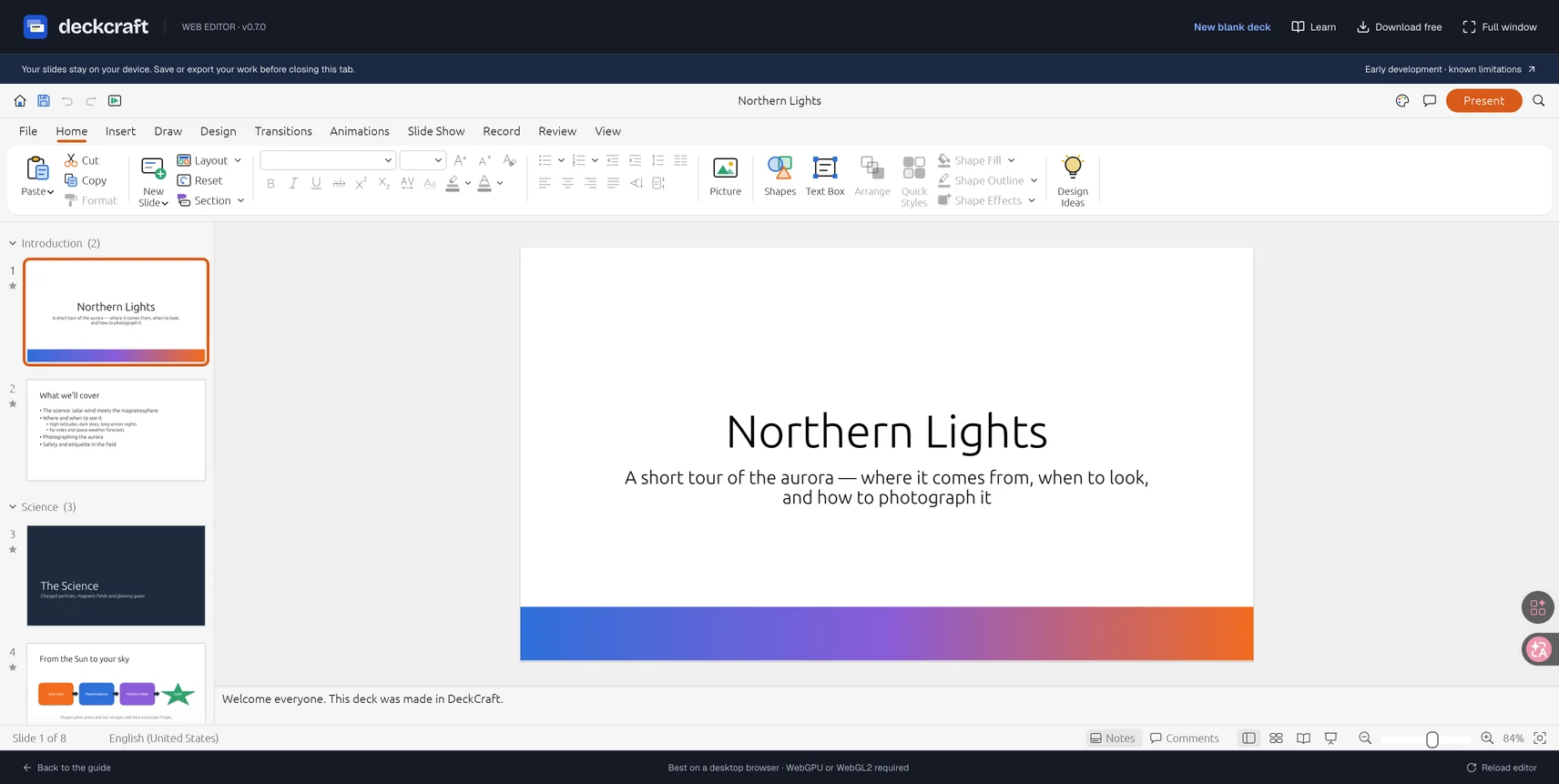
Go to the DeckCraft online editor to open the browser workspace. You can also begin from the homepage editor section, which provides an embedded entry point. The separate workspace gives the application more room and keeps the learning material out of the editing area.
On the first visit, the page downloads the editor before displaying the sample presentation. Wait for the loading message to disappear and the slide canvas to become usable. An empty area during startup does not necessarily mean the presentation is missing. If the workspace never appears, use the troubleshooting sequence later in this guide rather than immediately resetting the browser.
The site wrapper has a small number of controls around the editor: New blank deck, Learn, Download free, Full window, and Reload editor. These are separate from the application's own ribbon and file commands. Knowing which layer you are using helps prevent accidental resets while you are trying to save a slide.
At the time of this guide, the hosted workspace identifies itself as v0.7.0. The latest upstream desktop release may be newer. Instructions for a feature in newer release notes do not prove that the same feature exists in this browser build. Treat the version label and visible interface as the reference for the workflow you are using here.
Prepare the browser before starting important work
The workspace is best used in a desktop browser with a keyboard, a pointing device, and enough screen space for the ribbon and slide canvas. The site's editor status identifies WebGPU or WebGL2 as a graphics requirement. Actual behavior depends on the browser, graphics driver, hardware, and device policy, so test the editor on the computer you intend to use.
Keep the browser current through its normal update process. A restricted corporate profile, remote desktop session, or browser running without usable graphics support can behave differently from a personal laptop. If the application fails to load, note the browser version and device before changing settings. That information makes troubleshooting much more concrete.
Create a simple working folder before editing. Put the source presentation, reference images, and exported copies in clearly named locations. Browser downloads often accumulate in a general Downloads folder; moving the completed file into your project folder is an easy step to forget. Decide where the usable copy belongs before you have ten similarly named files.
This workflow does not require you to install the desktop application. It also should not be treated as a cloud collaboration workspace simply because it runs in a browser. A browser tab, a website account, and a remotely stored shared document are different things. Test how your files are saved and shared instead of assuming that closing the tab leaves a synchronized copy elsewhere.
Create a small test deck before importing real work
Begin with the sample presentation. Click a thumbnail, select a text object, and inspect the ribbon. Confirm that the editor responds to a basic change. This gives you a known starting point before you introduce a large or complex file from another application.
For your first original document, use a three-slide exercise:
- A title slide named “Quarterly project review.”
- A content slide with three short progress statements.
- A closing slide naming one next action and its owner.
These are practice prompts, not a template you need to follow exactly. Use harmless sample content while you learn the controls. You should be able to recognize every part of this test deck after saving and reopening it.
Before choosing New blank deck, save any existing edits you want to keep. The wrapper displays a reset confirmation because changing between the sample and a blank document replaces the current workspace. Do not use that action as a substitute for adding another slide inside a presentation.
Once the new document is open, add content a little at a time. Save an early copy before you spend an hour formatting. A small successful save is a useful confidence check; it confirms that the browser can produce a file you can locate and reopen. The first-presentation guide expands this exercise into a complete six-slide story.
Use three editing passes instead of changing everything at once
In the first pass, write the message of each slide. Give every slide a title that says something specific. “Support requests cluster around setup” is more useful than “Results,” provided that it accurately describes your evidence. Leave decorative work until the structure is understandable.
In the second pass, arrange the content. Keep titles in a consistent location, group related objects, and leave space around the element that carries the main point. Use a diagram when you need to explain a sequence and a chart when you need to compare values. Do not use an image merely to fill a gap you could leave empty.
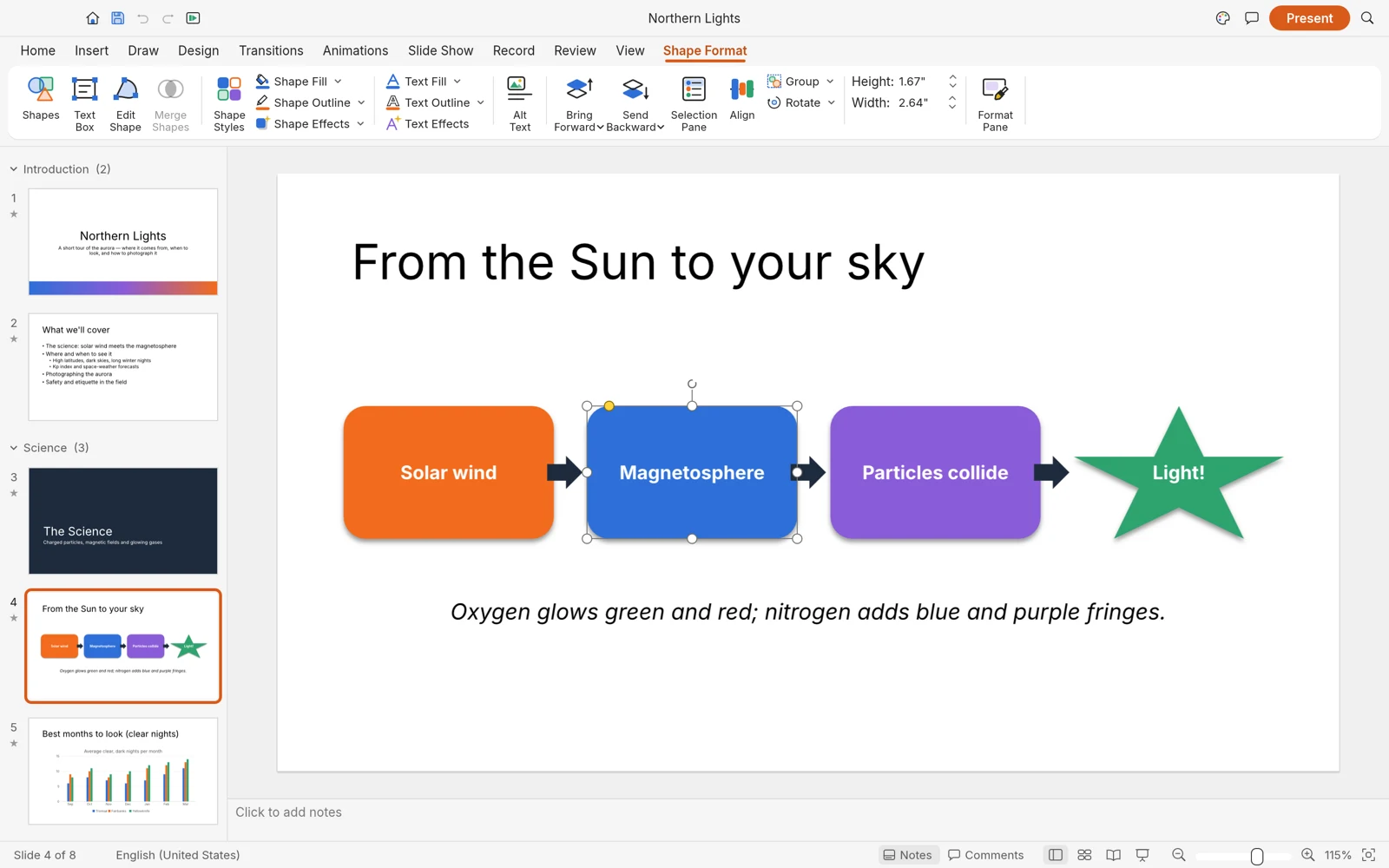
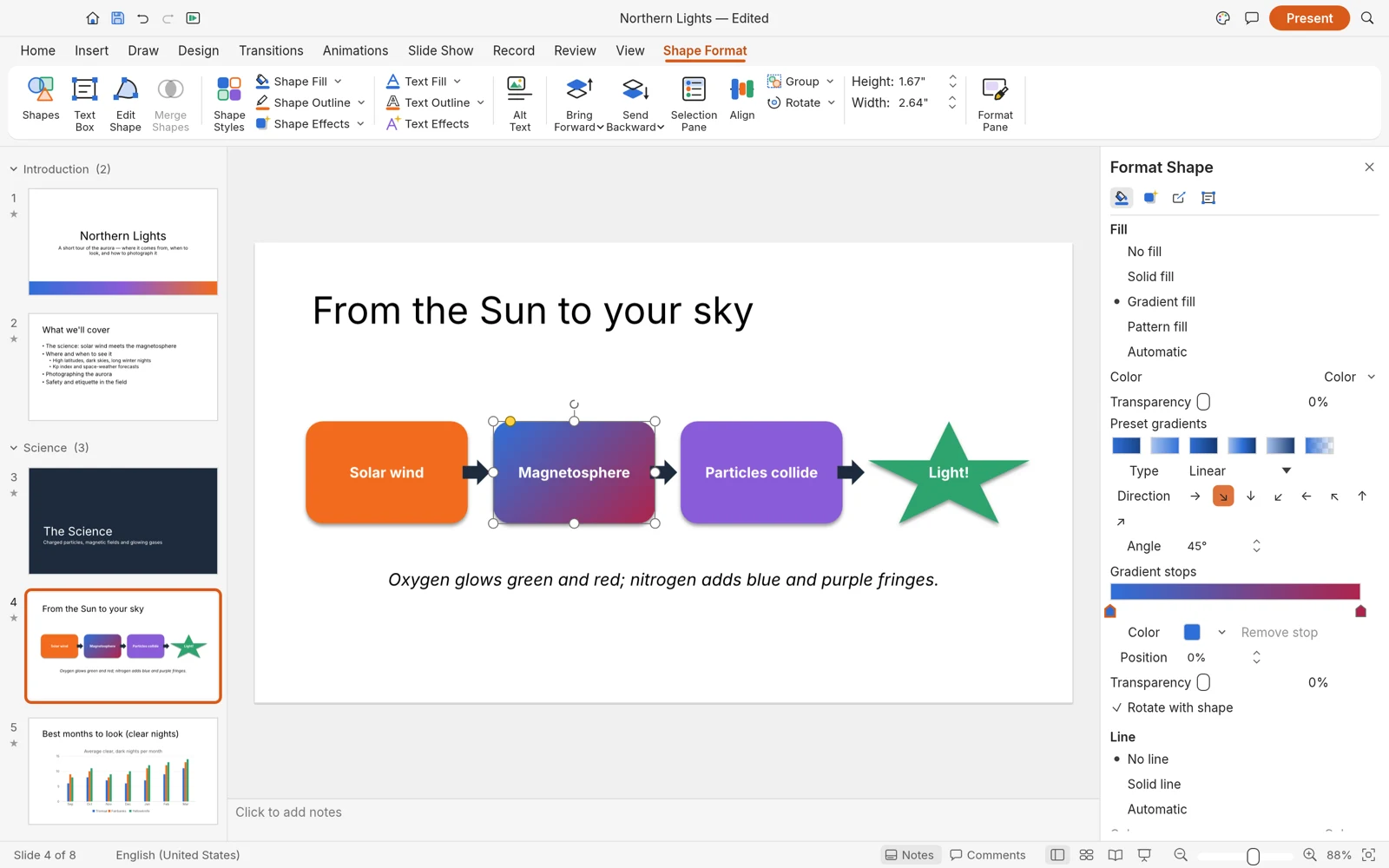
In the third pass, refine typography and visual details. Check line breaks, label length, contrast, and the balance of the whole slide. If the same change is needed on several slides, apply a consistent rule rather than making independent guesses. For example, use one treatment for all section titles and another for all captions.
For a larger editing area, use Full window after preserving your current work. It opens the direct editor page in another tab. Treat that as a separate workspace: do not assume that opening it transfers an unsaved document from the embedded editor. If needed, save your current document and reopen the saved file in the new workspace.
Browser shortcuts can conflict with application shortcuts. When you are unsure whether a shortcut saves the presentation or opens the browser's own page-save dialog, use the application's visible file command. Check the extension and contents of the resulting download; a saved HTML page is not your editable slide deck.
Save a usable copy before leaving the page
The most important browser habit is to distinguish “the slide is visible” from “the work is safely stored.” The editor wrapper explicitly reminds you to save or export before closing the tab. Follow that rule before a reset, reload, browser update, or change of workspace.
Use the save or export command offered by your current build. Read the available format choices rather than assuming they match the newest desktop release. Give the file a descriptive name and check the browser's download list. If the browser asks where to save it, choose the project folder you prepared earlier.
Then verify the result:
- Find the file on disk and confirm that its name and extension are what you expected.
- Check that the download completed rather than remaining in a temporary or partial state.
- Open a saved copy in the intended application and inspect the latest change.
- Keep the previous known-good revision until the new copy passes your check.
For the three-slide exercise, make a distinctive edit such as changing the closing slide's action owner. Save again and reopen the file. If that new text is present, you have confirmed that you are inspecting the latest revision rather than an earlier download with a similar name.
Do not depend on the browser's Back button, tab restoration, or temporary application state as your backup method. Private browsing, storage cleanup, or a browser crash can change what is recoverable. Even if a particular build offers recovery features, a verified file under your control is a more useful checkpoint for a repeatable workflow.
Check imported PowerPoint files in both directions
If you want to edit an existing PPTX online, begin with a copy. Preserve the original in a separate folder and choose a small representative document for your first test. A file with one title, one picture, one chart, and a few text boxes is easier to diagnose than a long client deck with many embedded objects.
After opening it, inspect fonts, line wrapping, slide proportions, image crops, and object positions. Compare a few important slides with the original application. If your deck uses notes, transitions, audio, or video, check those elements explicitly rather than assuming they are preserved because the static slide looks correct.
Save an edited copy with a different name and reopen it in PowerPoint if that is where the recipient will work. This round trip tests the full handoff. Keep a short record of any differences so you can decide whether to simplify the affected slide, finish it in PowerPoint, or choose another delivery format.
For a practical evaluation matrix and a migration exercise, see the DeckCraft versus PowerPoint guide. It focuses on the actual files and collaboration requirements that should drive your choice.
Troubleshoot loading and editing problems in order
The loading message remains on screen
First check whether the browser is still downloading application resources and whether your connection is working. The initial visit has more to load than an ordinary text page. If the wrapper presents Open compatibility mode (WebGL2) after a slow start, try that route with a fresh test session. The explicit compatibility entry is preferable to guessing query parameters or changing unrelated browser settings.
The canvas is blank or graphics fail
Record the browser and device, then try a current browser profile that is allowed to use the necessary graphics capabilities. If a managed policy controls graphics or web applications, check with the administrator. Do not change system-wide settings without understanding the reason. Compare with the desktop installation route if the web environment remains unsuitable.
The workspace feels slow
Test the built-in sample or a tiny deck. If that works normally, reduce the size or complexity of your imported images and examine the slide that triggers the slowdown. Close unrelated heavy tabs if appropriate. Changing one variable at a time makes the cause easier to identify than simultaneously replacing the browser, document, and settings.
A button appears to do nothing
Check the selection and whether another dialog has focus. A formatting action may need a text object or a shape to be selected. For file operations, inspect the download indicator and any browser prompt. A blocked download or a dialog behind another window can make a completed action look unresponsive.
I need to reload the editor
Save first if the editor still responds. Reload editor recreates the embedded workspace; it is not an autosave action. If the only copy of a document is currently open, repeated reloading can remove the opportunity to preserve it. For a recurring failure, write down the steps and use a small, nonconfidential reproduction when asking for help.
When is the desktop app the better next step?
Evaluate the desktop application when the browser environment is unreliable, when an installed file workflow better matches your work, or when you want to test features in a newer upstream release. The choice should come from a specific need. Installing an application does not automatically resolve a document compatibility problem.
Use the same test deck in both environments. Compare startup, editing, saving, presentation mode, and the destination file. Write down what changed and whether it matters to your project. This makes the comparison reproducible and prevents a visually different interface from being mistaken for a better fit.
Follow the download guide for package selection and first-launch checks. Keep the browser workflow available for small experiments if it works well on your device, while using a tested environment for deadline-sensitive presentations.
Frequently asked questions
Do I need an account to try the online editor?
The public /app workspace can be opened directly in the observed site flow. An account on the surrounding website should not be interpreted as evidence that the current deck is saved to that account. Verify file storage separately.
Can I edit comfortably on a phone?
The interface is intended for a desktop-sized browser workspace. A phone may be useful for reading guides, but precision selection, ribbon controls, and file handling are easier to evaluate on a computer. Do not assume mobile editing is equivalent without testing your own device.
Does the browser editor work offline?
Do not plan around offline availability unless you have tested the exact environment and workflow. Browser caching is not a promise that a new session can load without a connection. For offline work, evaluate an installed application in advance.
Where should I go next?
Return to the homepage to choose an entry point, build the six-slide practice presentation, or compare the workflow with PowerPoint. For application status beyond this hosted build, consult the upstream project.
Put the guide into practice
Return to the homepage to explore the editor, create a small test deck, and try the workflow with your own content.